Dependency Designer and Impact Map: see what depends on what

Most recovery surprises are dependency surprises: the application nobody listed, the server three critical processes share, the vendor behind a service everyone thought was in-house. eRMA gives the dependency model two views. The Dependency Designer is where links are drawn and kept current. The Impact Map is where they are read, so an outage can be traced to everything it reaches before it happens for real.

The problem it solves

  • “Our dependencies are in a dozen spreadsheets, one per team, and none of them agree.”
  • “When a server goes down, it takes an afternoon to work out which processes are affected.”
  • “The process needs to be back in four hours, but nobody checked how long the application behind it takes to recover.”

How it works

1. Draw the links on a canvas

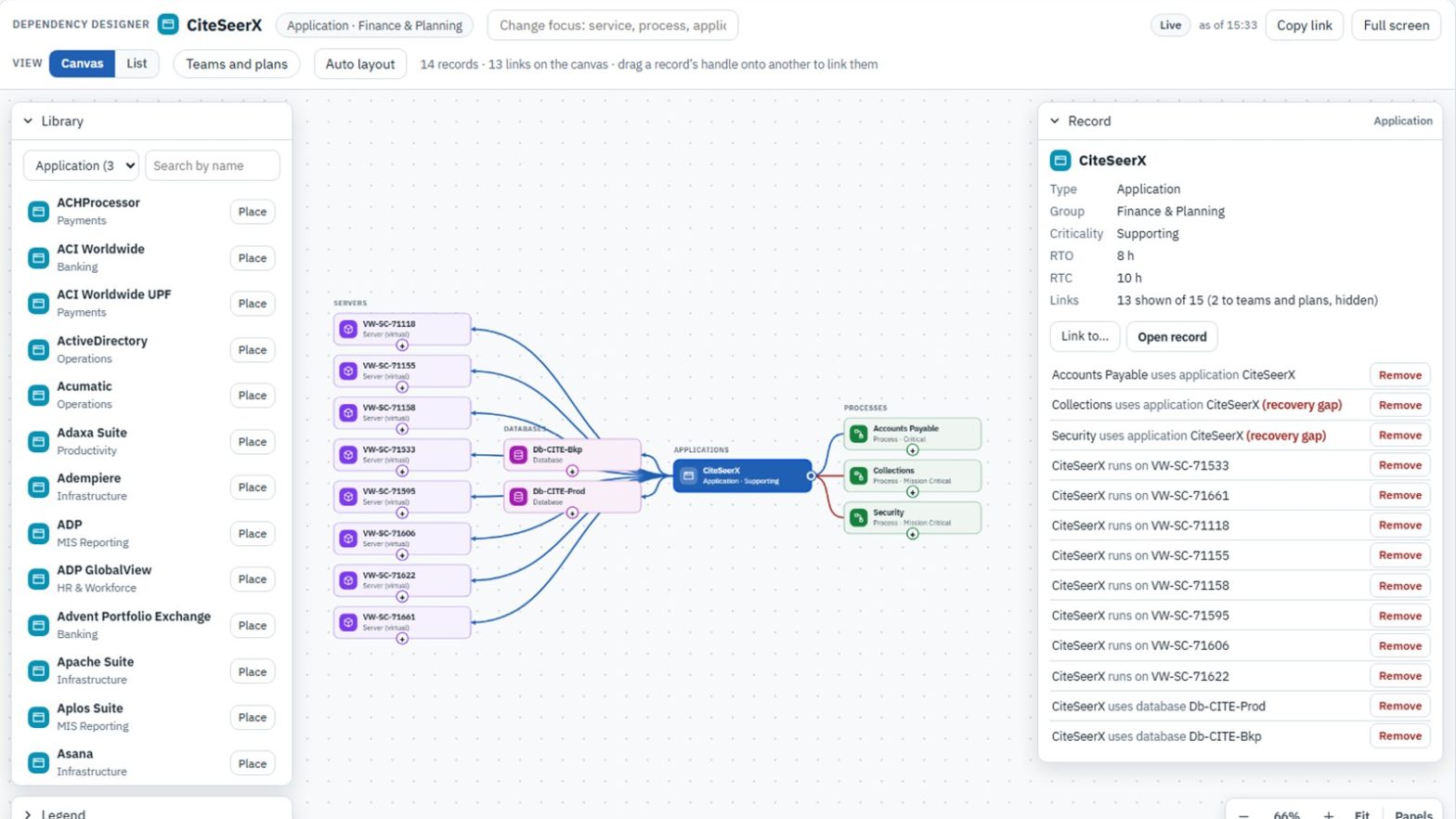
The Dependency Designer opens on one record, such as a process, application or service, and shows what it is linked to: applications, servers, databases, locations, other processes, and customers and suppliers. To add a link, drag a record’s handle onto another record, or place a record from the library and link it there. Keyboard users get the same result through “Link to…”. The designer only offers links that make sense: it refuses a duplicate, a link from a record to itself, or one that would create a loop.

New links and changes are collected first, not saved one by one. “Review and save” lists every change before it is written, and the whole set is saved together or not at all. If someone else changed the same record in the meantime, the designer says so instead of overwriting their work. Any link whose recovery doesn’t fit is marked as a recovery gap on the spot.
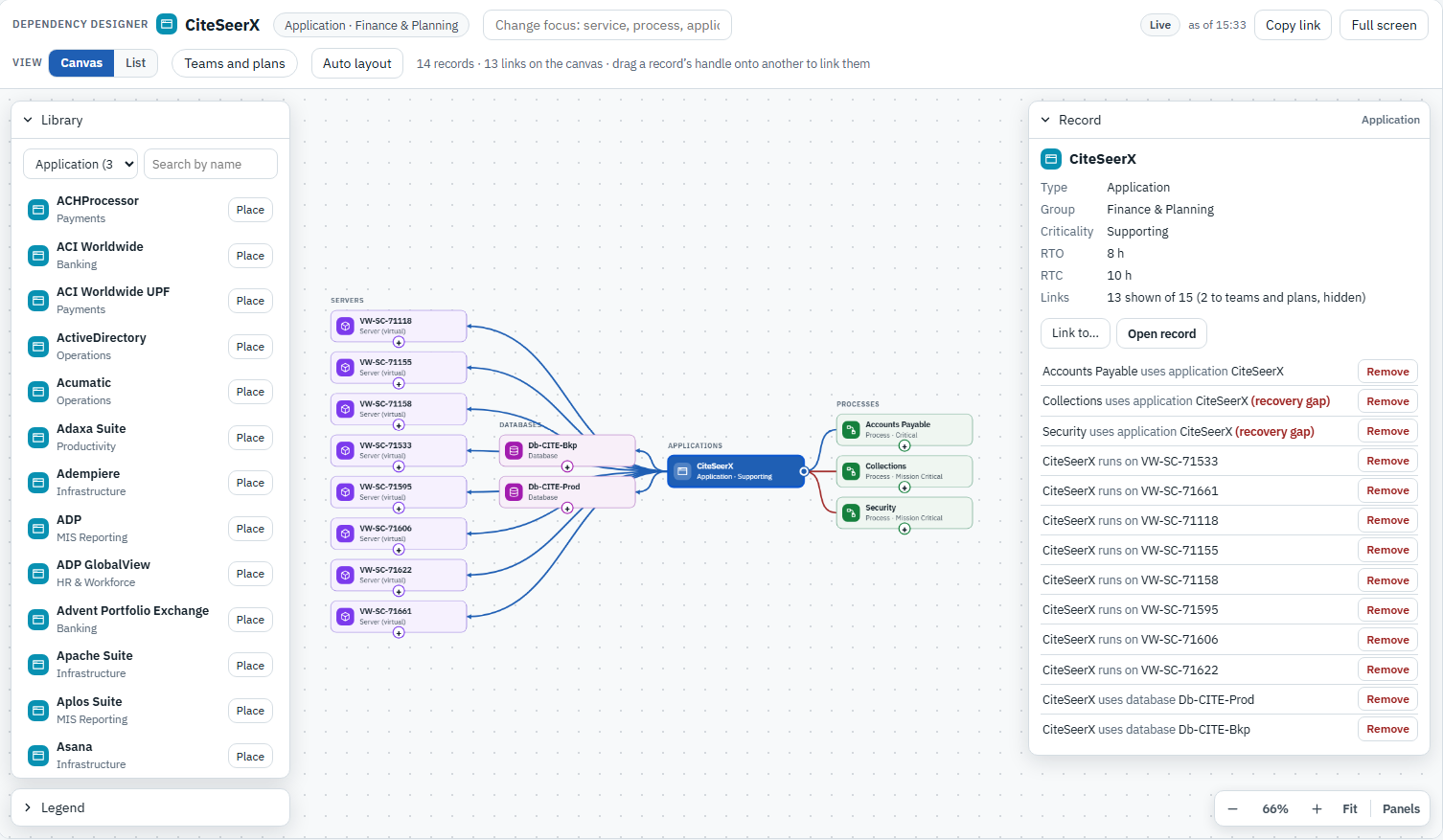
Dependency Designer canvas centred on an application, linked to its servers, databases and the processes that use it, with recovery gaps marked in the record panel

2. Trace an outage before it happens

The Impact Map starts from any record and follows the links in either direction. “Impacts” shows everything that relies on the record, “Dependencies” shows what it relies on, and “Both” shows the two together, from one to five levels deep. The business view keeps the picture readable by listing services, processes, applications, and customers and suppliers. Servers and databases appear only where they connect them. One switch shows all records.

The summary beside the map counts what is affected and how many of those records the outage would push past their RTO: here, an application that takes ten hours to recover today, supporting three processes that need it back sooner. Panels on the same page list shared dependencies, data-quality issues to check, and the recovery strategy options for the record in focus. A view can be saved or shared as a link.
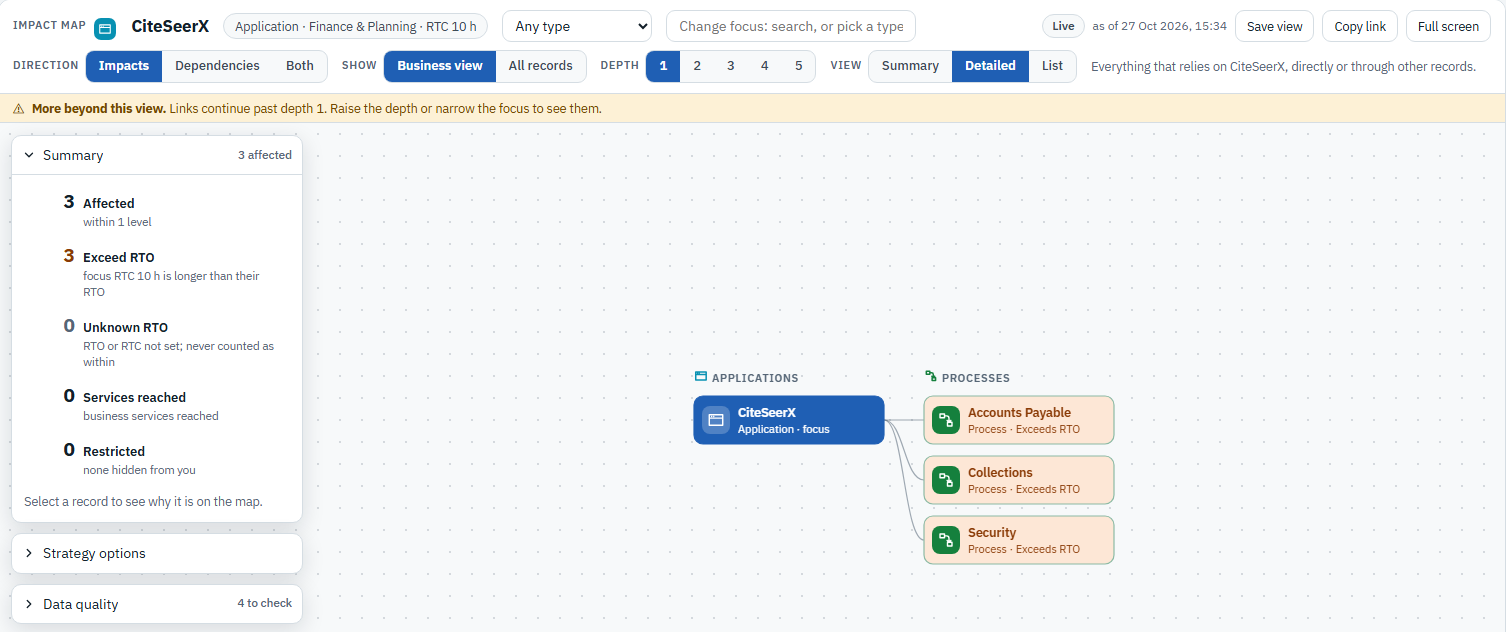
Impact Map of an application showing the three processes it supports, each marked Exceeds RTO, with a summary panel counting affected records

3. Let the unknowns show

When a record has no recovery time set, the Impact Map says Unknown instead of assuming it will be fine. Each affected record carries the label, and the summary counts them separately, so missing data is a visible gap rather than a silent pass. Records the viewer is not allowed to read are counted as Restricted, never left out.
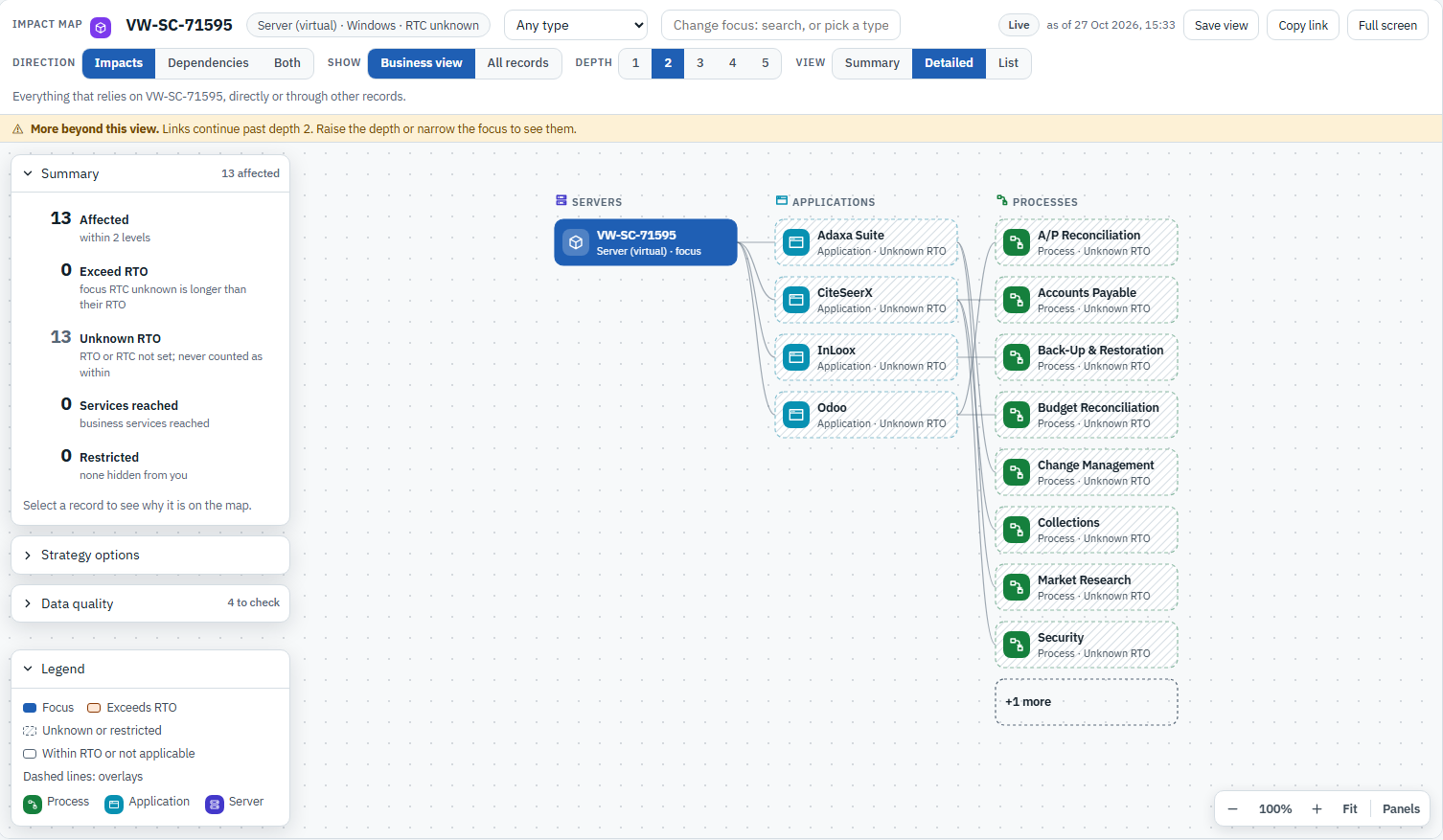
Impact Map of a virtual server showing the applications and processes that rely on it, each labelled Unknown RTO, and counted separately in the summary

What it proves

The designer, the Impact Map, the business impact analysis and recovery planning all read the same links, so a dependency is recorded once and used everywhere. A gap is shown where it occurs, at the link that causes it. Unknown is never shown as healthy, and Restricted is never shown as zero. When an incident or exercise starts, the picture of what depends on what is already drawn.

See it on your own data: Book a demo
Plan Sequencer: the order your recovery really runs in

A recovery that needs twenty plans isn’t twenty separate recoveries. Infrastructure comes back before the applications that run on it, and applications come back before the business processes that use them. The Plan Sequencer puts every plan in a scenario on one page, in the order they will actually run, so the team can see how long the whole recovery takes and which recovery objectives it would miss.

The problem it solves

  • “Each plan has its own timings, but nobody can say how long the full data center recovery takes end to end.”
  • “The order plans run in lives in one person’s head, or in a slide from the last exercise.”
  • “We only found out the application team was booked on three plans at once when the exercise started.”

How it works

1. Start from the scenario, not a blank page

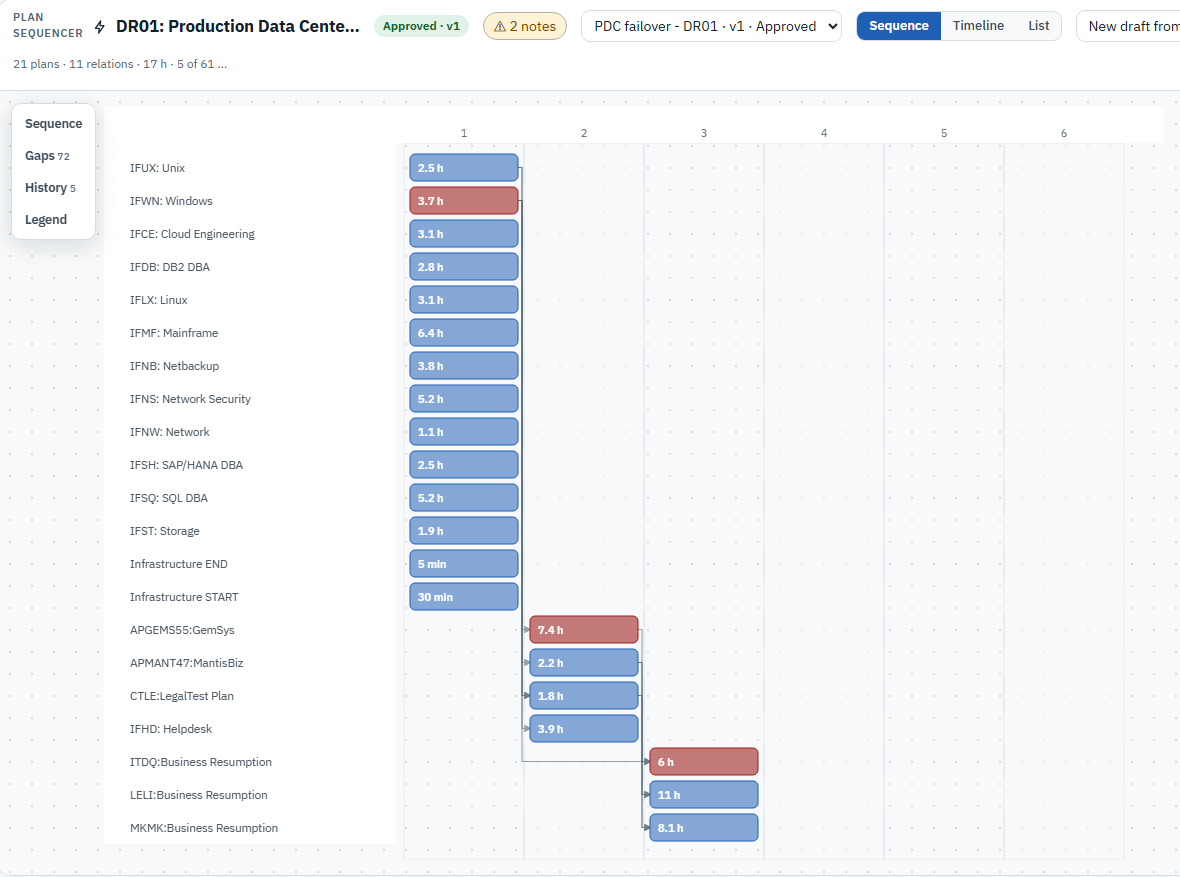
Open a scenario’s Sequence tab and the sequencer proposes a first order from what the scenario covers. It brings in the plans for the records in scope, puts infrastructure, applications and processes in their own lanes, and chains a plan after another wherever the dependency model says one record relies on the other. Each plan is one bar. In the Sequence view, each column is a step, so the order reads left to right at a glance. Plans can also be added from the plan catalogue, or the sequence can be built from scratch.

Plan Sequencer Sequence view of a data center recovery scenario: one bar per plan, infrastructure plans first, then applications, then business resumption, chained left to right

2. See the timeline and the critical chain

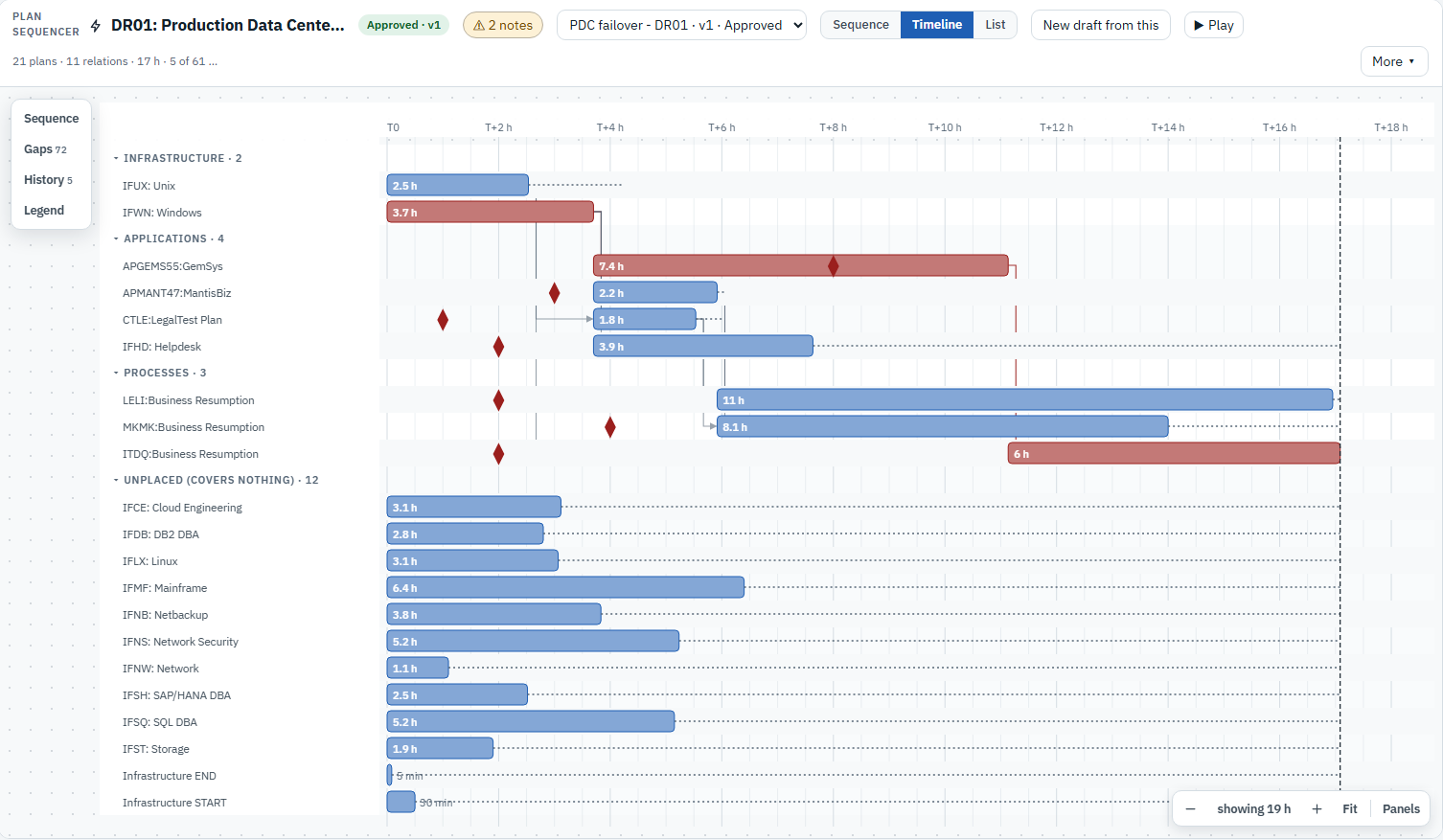
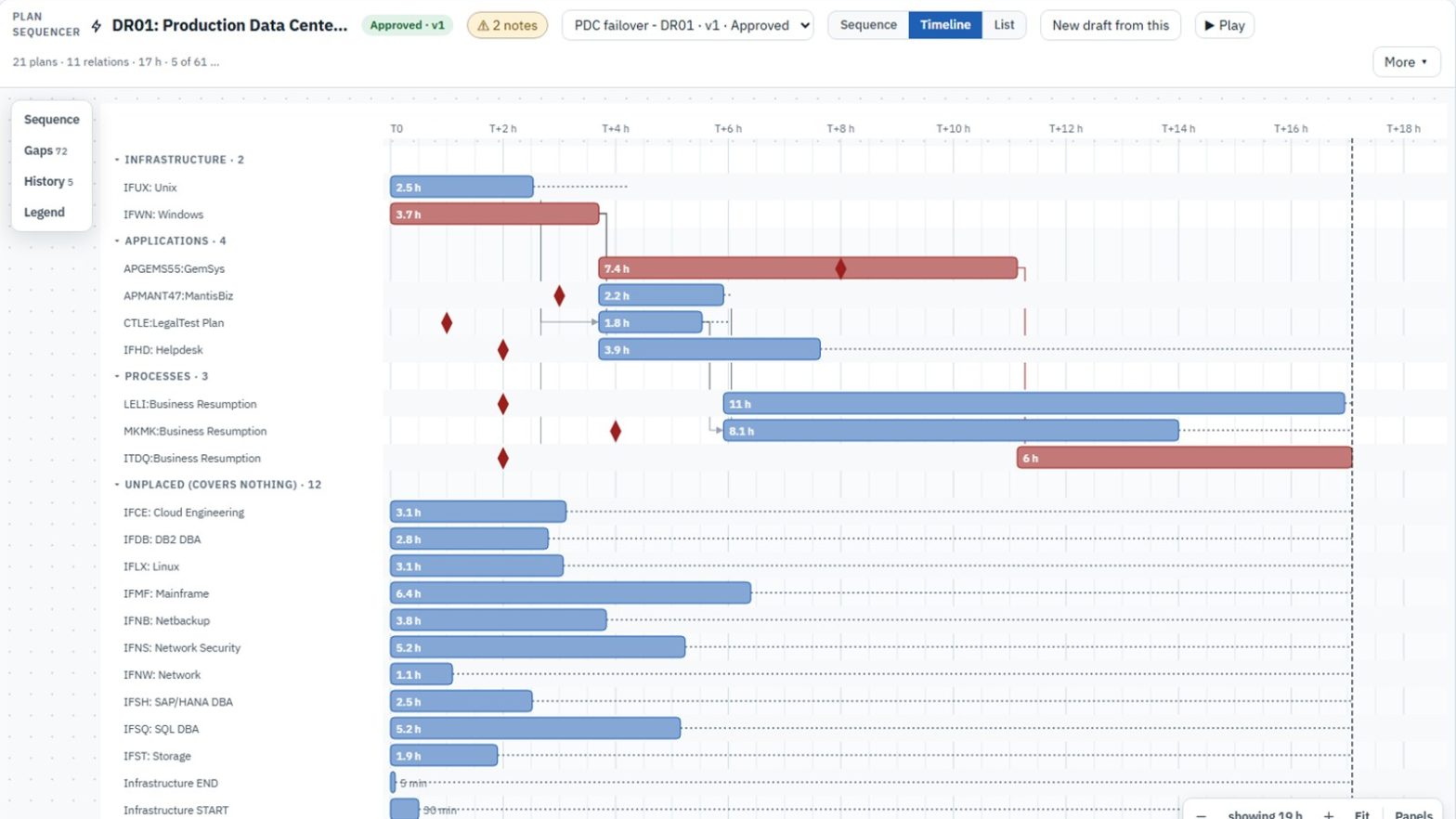
The Timeline view gives each bar its real duration. It highlights the critical chain, the plans that set the total recovery time, and marks the shortest RTO of what each plan covers, so a plan that finishes too late stands out. Relations are set by dragging. A plan can start with another, when another finishes, or a set time after either one, and each plan shows its slack, the time it could slip without delaying the end. A team load switch flags any recovery team that is needed in two or more plans at the same time. Play runs the recovery against the clock so a walkthrough can follow it step by step, and undo and redo keep editing safe.

Plan Sequencer Timeline view with plans in lanes on a time axis, the critical chain in red and diamond markers for the RTO of what each plan covers

3. Approve it, and keep it for the record

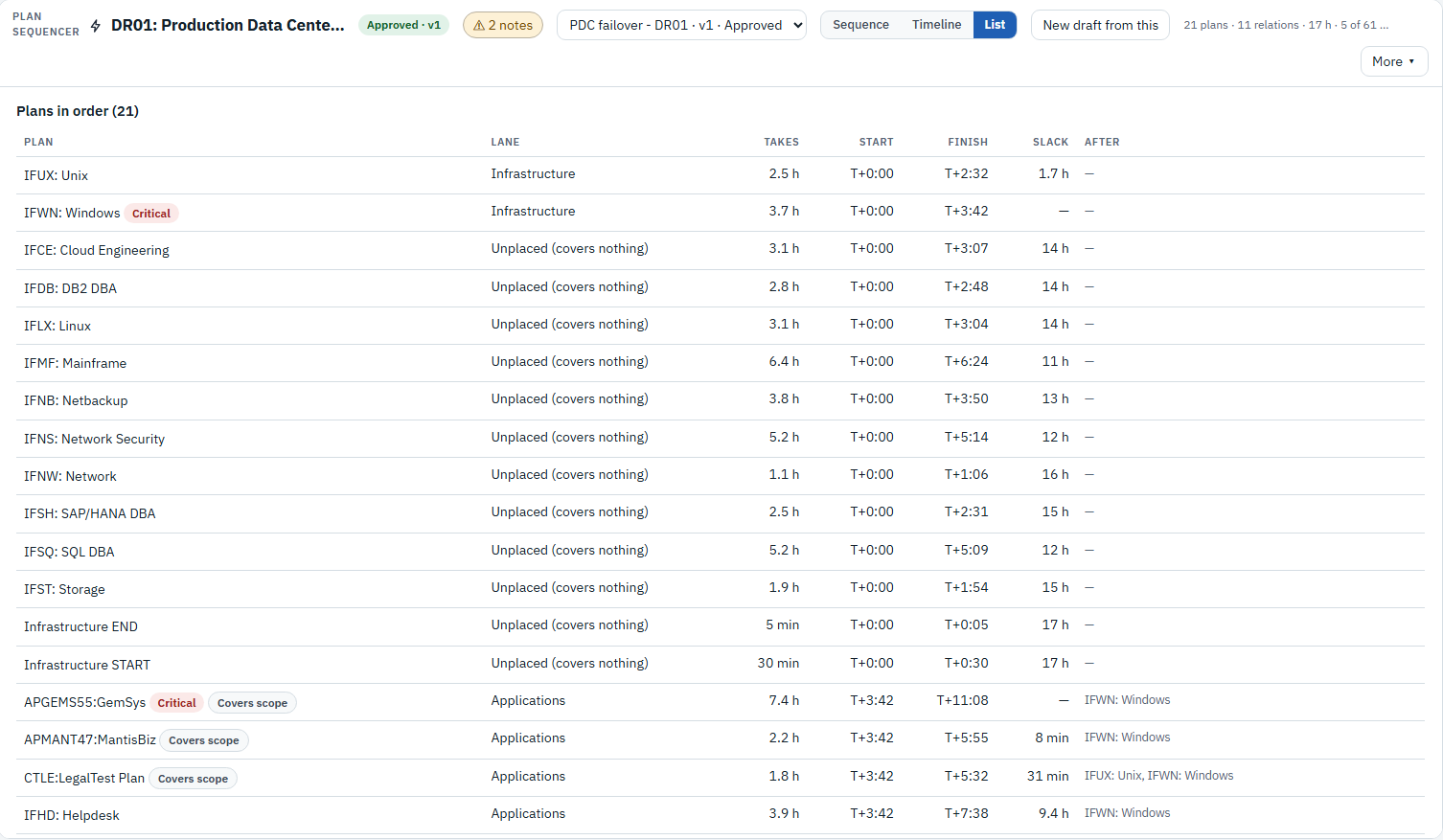
The List view sets out every plan with its lane, duration, start, finish, slack and the plans it runs after. A draft is validated and then approved as a numbered version, and the change history is kept. “New draft from this” starts the next round from the approved one, and two versions can be compared before the next approval. A printable brief gives the same order to anyone who needs it on paper.

Plan Sequencer List view of an approved sequence, giving each plan's lane, duration, start, finish, slack and the plans it runs after

What it proves

The order comes from the same dependency model and plans the rest of eRMA uses, so nothing is retyped into a project tool. When the model changes, a new draft can be derived again, with the differences shown. The total recovery time is calculated, not estimated, and a plan that finishes after the RTO of something it covers is shown as late. Plans that cover nothing in the scenario are listed separately rather than hidden. Going into an exercise, the order is already agreed, approved and printed.

See it on your own data: Book a demo